Help
Search
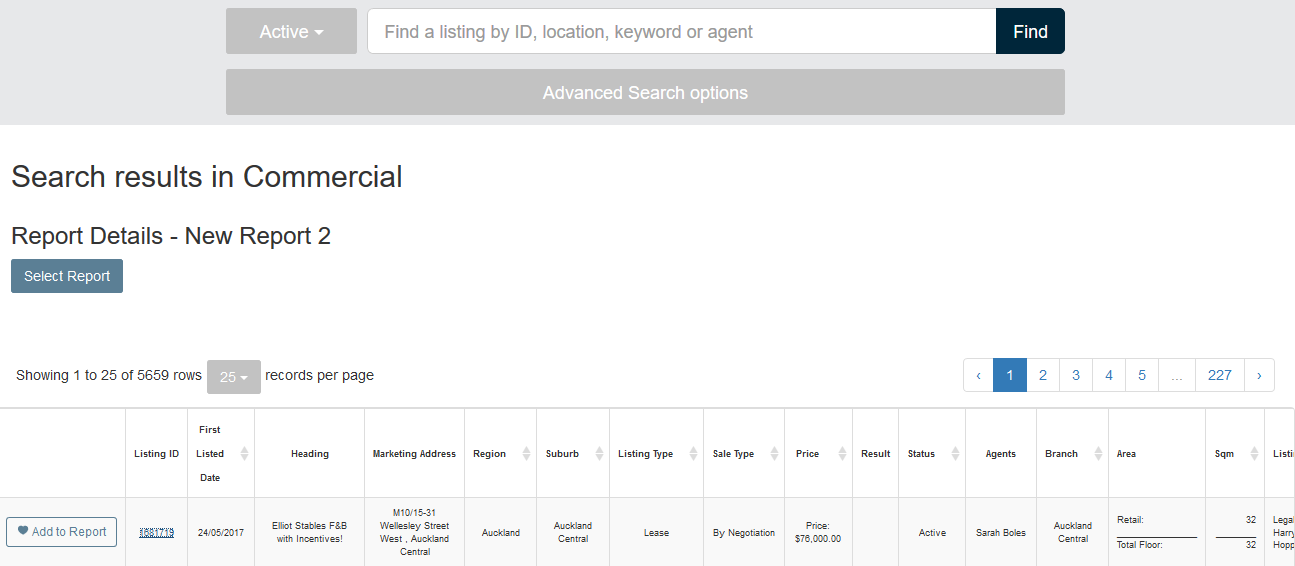
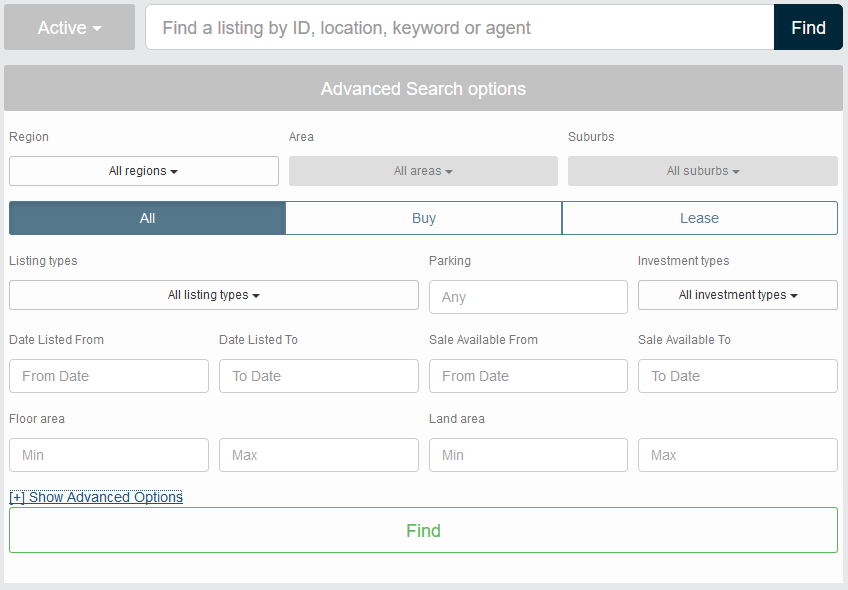
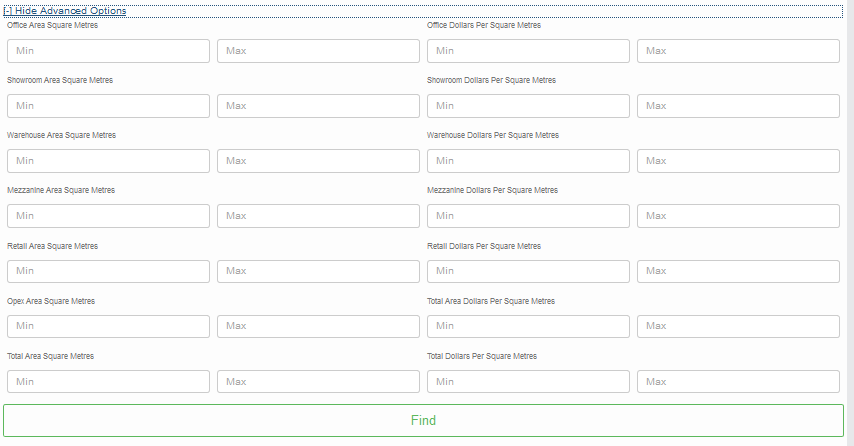
This reporting tool work similar to a shopping cart. You search for the properties that you wish to go in your report using the search dialog:
Search Results
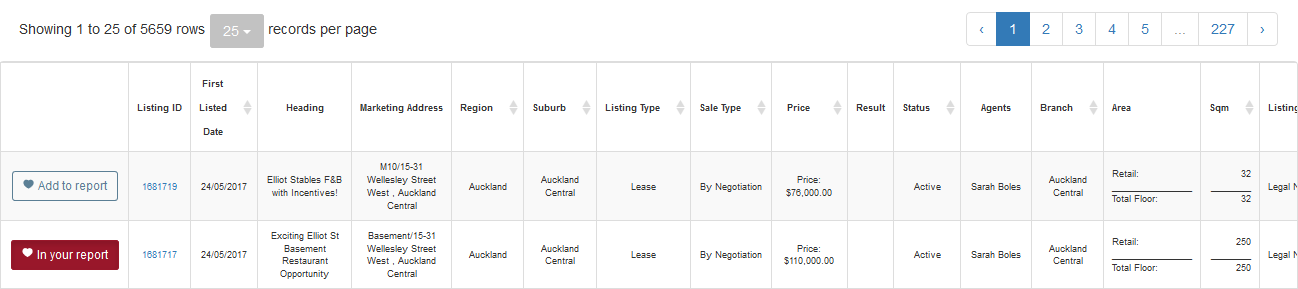
Once you have searched for property, you can select which properties you would like to go in your report. All you have to do is click the button:
Search Options
The Search Results section has 3 available options detailed below:
The will only be available when required, and will clear all data and allow you to start again. It checks that you want to remove the current data first.
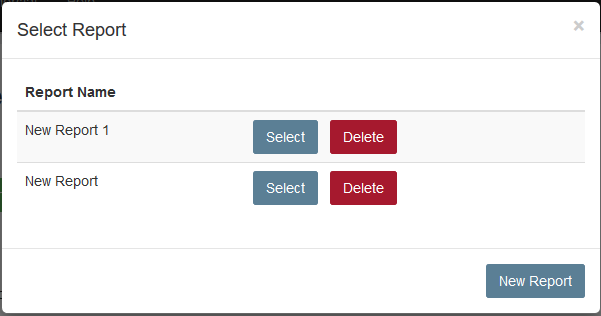
The will allow you to select or delete a previously saved report. You are allowed to save up to 5 reports. When you click this button you will be presented the following dialog where you can make you required selection:
takes you to the Report Details where you can reorder, save, delete and produce outputs from your selected listings.
Report Details
Here you will be able to modify the selected listings, search is no longer available on this screen. Treat this the same as you would a basket in an on-line ordering system where you can only modify your selection.
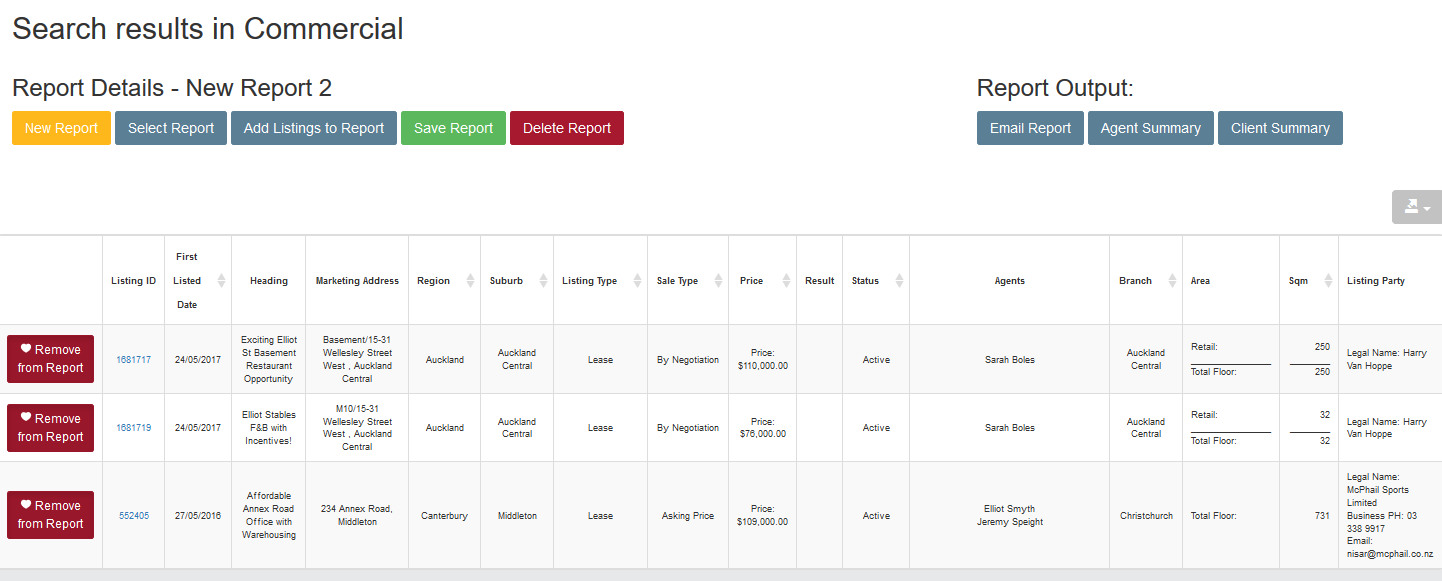
At the top left of the screen you will see the following buttons:

The allows you to go back to the search screen and find and add more listings to your report.
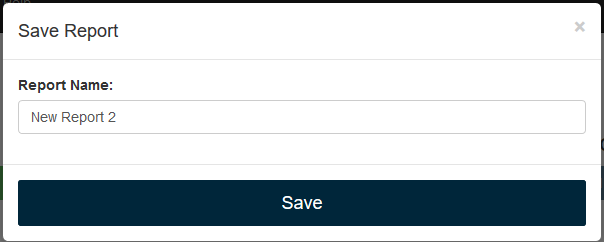
The allows you to save your report. It will present you with the following dialog:
The will allow you to delete the report after confirmation.
Commercial Report Output
At the top right of the commercial Report Details screen you will see the following:

The will prompt you with the following dialog for the email options:

The will open a new window with a preview of the Client Summary report. If you are happy with what you see you can email the report to yourself from this preview screen.
The will open a new window with a preview of the Client Summary report. If you are happy with what you see you can email the report to yourself from this preview screen.
Listing Details
On either the search or report screen, you can click on the Listing ID in the table to see more information for the listing. Once in this screen you are presented with 3 more options:

The Internet View will take you to the listing in the Bayleys website.
The Property Information Report will open a new window with a preview of the Property Information report. If you are happy with what you see you can email the report to yourself from this preview screen.
The Email to **** will email the current page to yourself.
Email output
All email output is in PDF format.